


A Webstarted tool · macOS (Apple Silicon) & Windows

Capture the screen.
Mark it up. Ship it.

A fast, no-nonsense screen capture app for builders. Grab any monitor or a precise region, annotate in place, and copy or save in one motion — with a local AI that can read and describe what you captured.

Also on Download on the Mac App Store Get it from Microsoft

The Mac App Store edition leaves out Canvas & PDF, Ollama AI, flows, webhooks, local network sharing and the MCP server. The direct download has all of it and updates itself.

Try it ⌘⇧2CtrlShift2full screen · ⌘⇧7CtrlShift7region · ⌘⇧8CtrlShift8copy text

On macOS 27 Golden Gate? It broke the left click on the menu bar icon of every Tauri app, this one included, and it deprecated the old capture APIs. Both handled from v0.64.0: what changed and what we did.

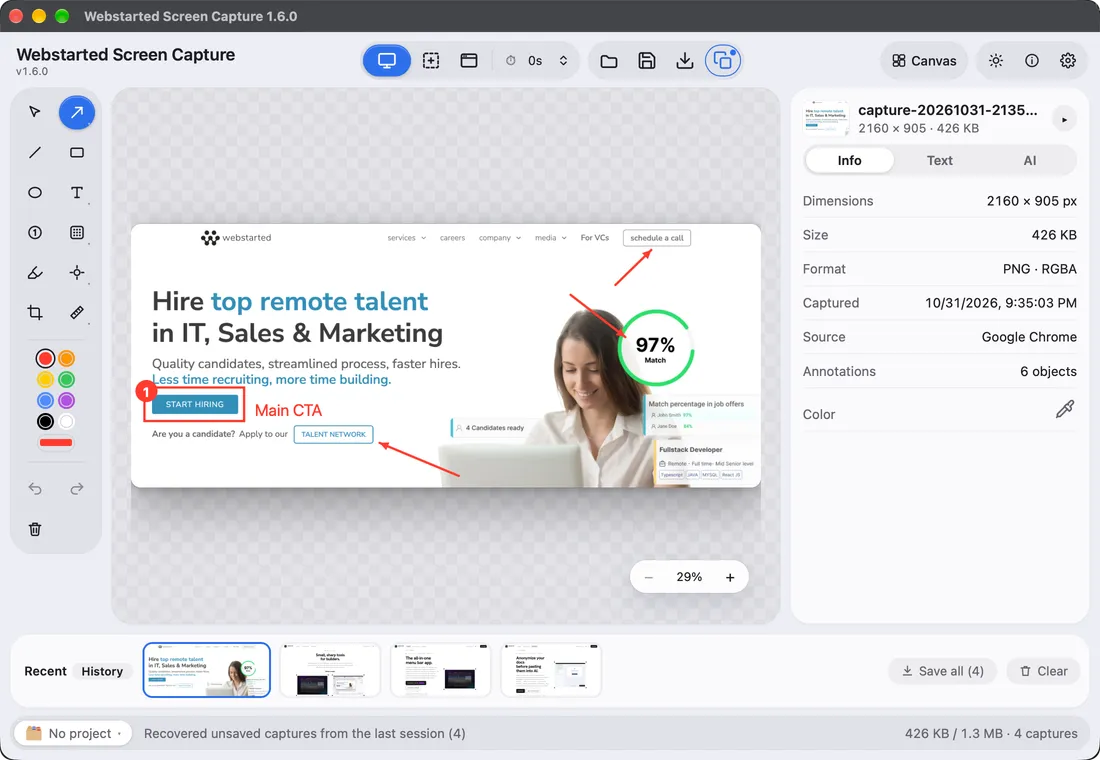
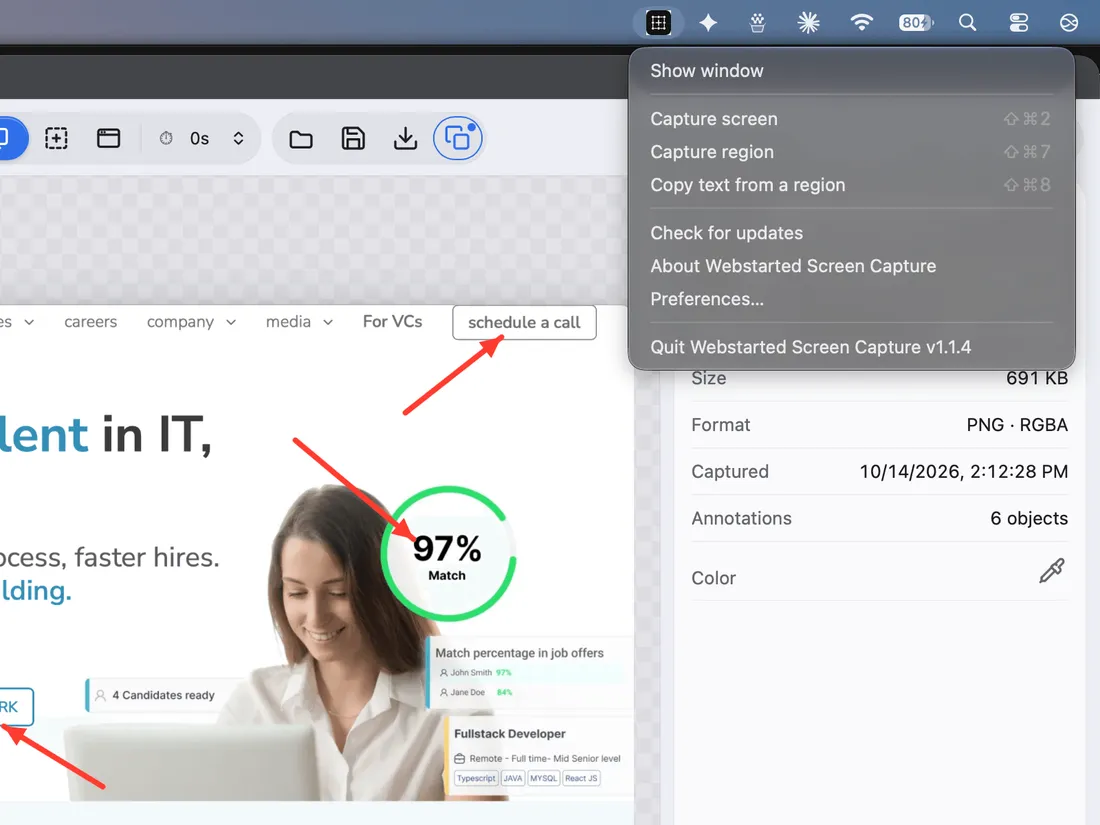
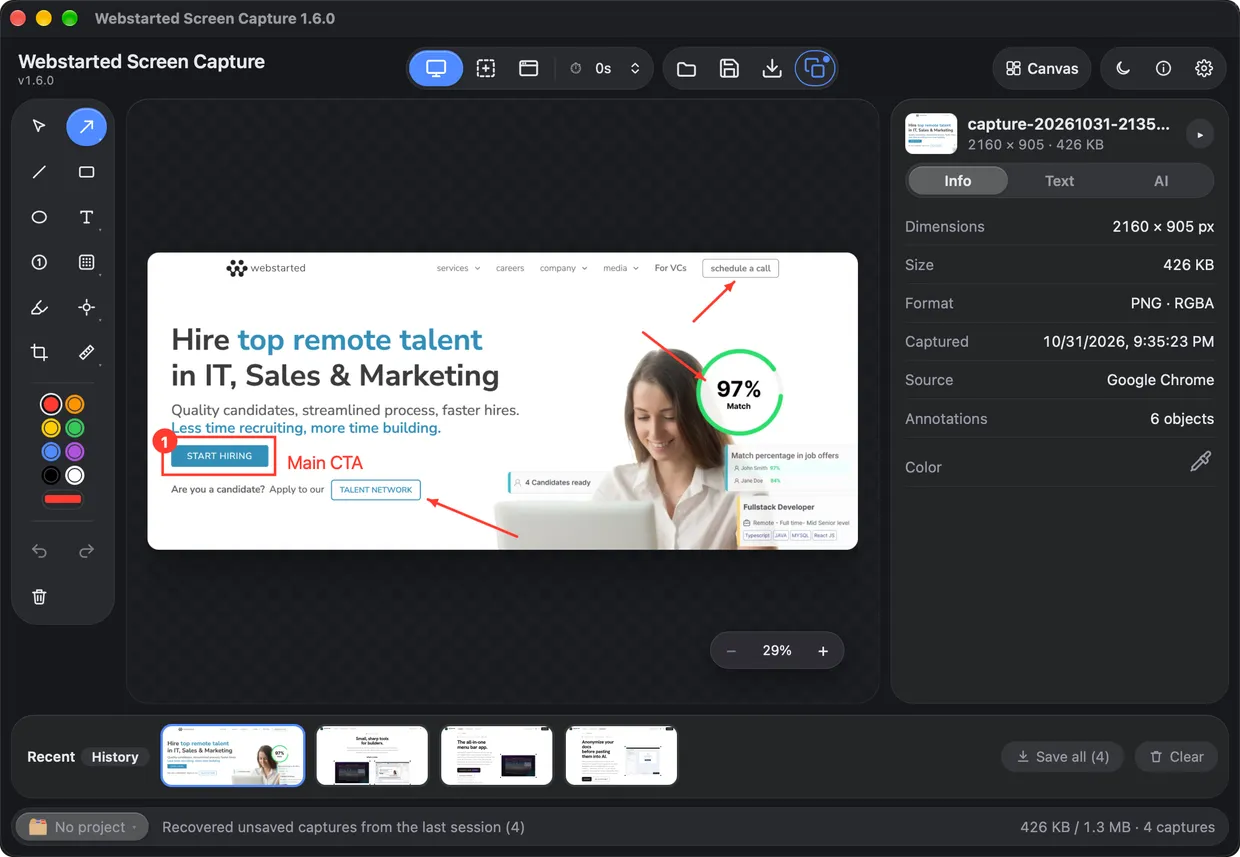
Webstarted Screen Capture on macOS editing a landing page capture marked up with arrows, a box, a numbered step and a text label, next to the Info panel
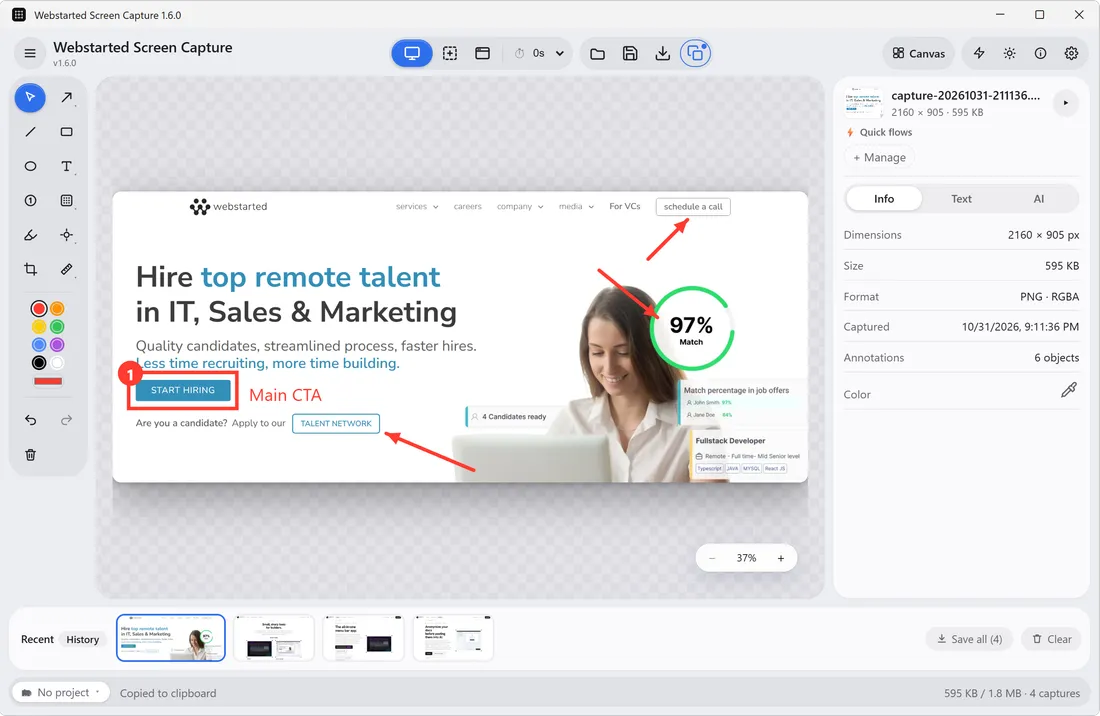
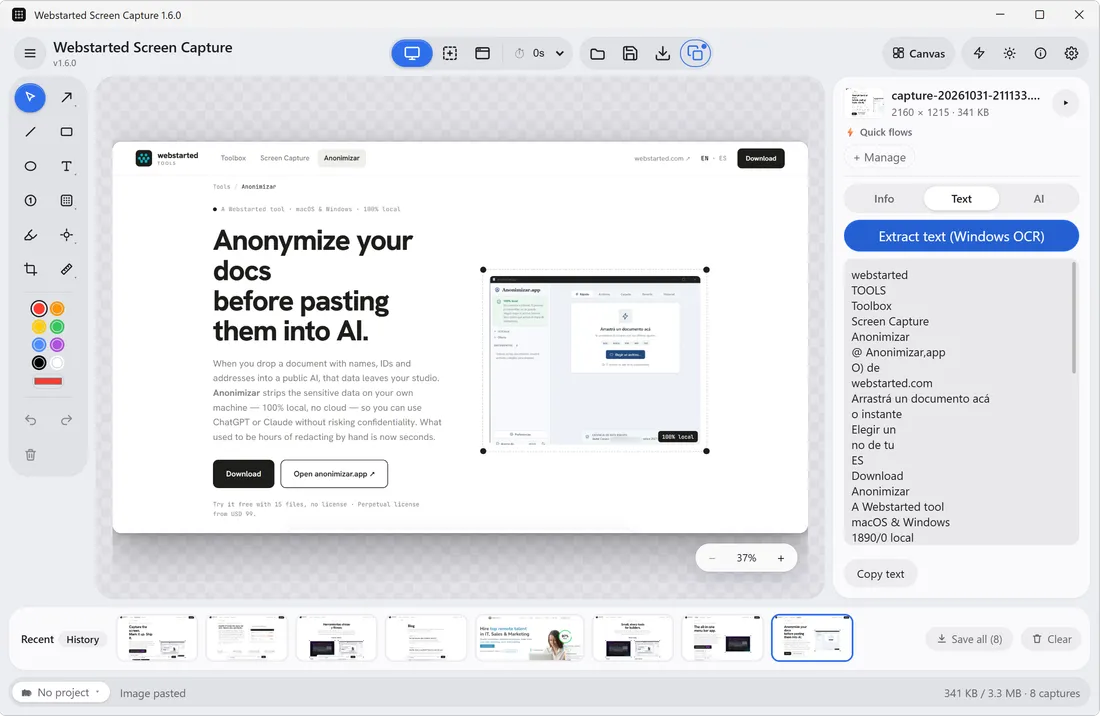
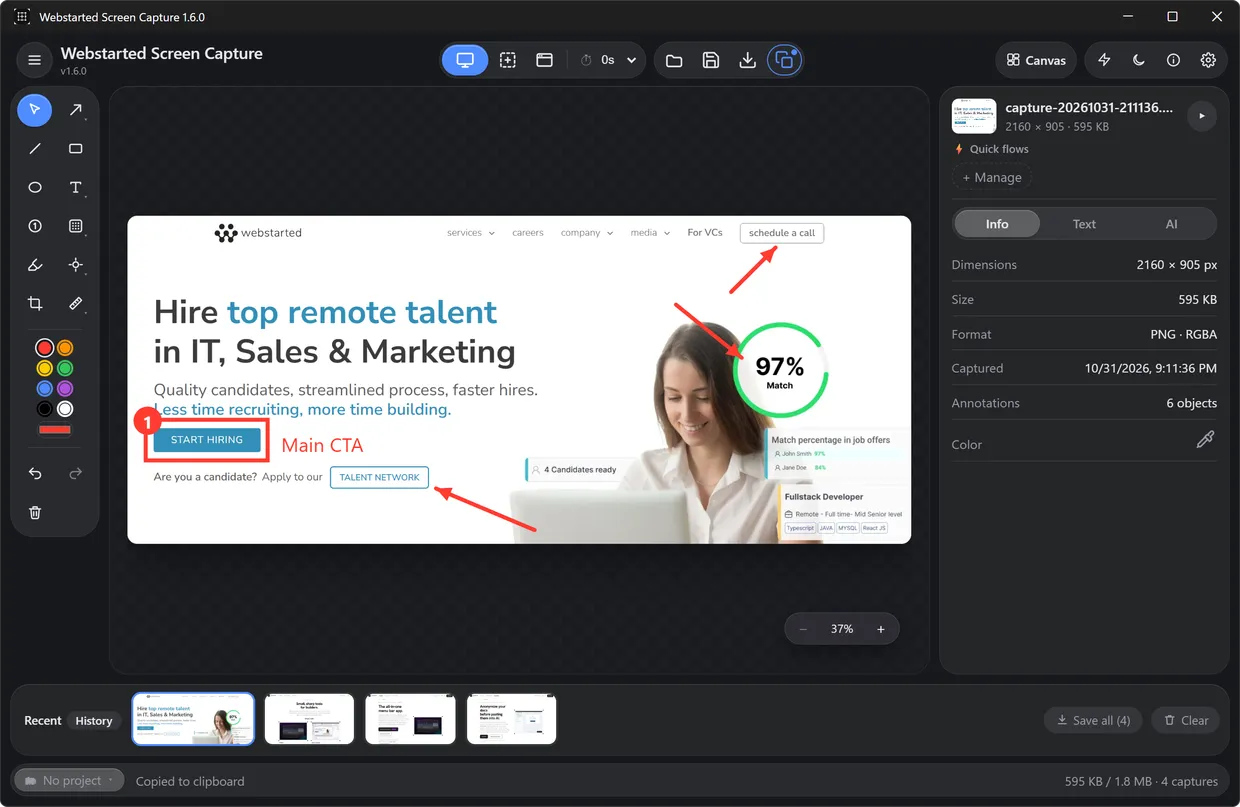
Webstarted Screen Capture on Windows 11 editing a landing page capture marked up with arrows, a box, a numbered step and a text label, next to the Info panel
PNG · annotated
Two region modesNative OS instant or frozen overlay
Every monitorPrimary, active, or pick one
Annotate in placeArrows, text, blur, crop
Instant OCRBuilt in, offline, nothing to install
Capture

Select a region, two ways.

Drag out exactly what you need. Use the native OS selector for an instant, zero-lag grab — screencapture -i on macOS, ms-screenclip on Windows — or switch to the classic overlay that freezes a full screenshot and works identically across platforms.

  • Instant native selection on both platforms
  • Frozen-overlay legacy mode, fully cross-platform
  • Pixel-snapped marquee with live dimensions
The Webstarted Screen Capture menu in the macOS menu bar: capture screen, capture region and copy text from a region, each with its shortcut
Displays

Full screen, any monitor.

One key grabs the primary display. Multi-display setup? List every monitor and capture the one you mean — or just take the active screen, the one the app is sitting on. No fiddling, no guessing.

  • Primary display in a single keystroke
  • Active screen — wherever the app is sitting
  • Pick any monitor from a labeled list
Annotate

A real editor, built in.

Arrows, lines, rectangles, circles, text and numbered badges. Blur or pixelate what's private, spotlight what matters, scribble with the marker. Measure any distance or box in pixels or points, and pick a color straight from the capture to copy its hex. Then move and resize anything until it's right, and crop to taste: it all composites into the PNG at full resolution the moment you save or copy.

  • Arrows, shapes, text & numbered steps
  • Blur, pixelate & spotlight for anything private
  • Pixel ruler (px or pt) & eyedropper with hex copy
  • Move, resize and crop — nothing is baked in early
The Webstarted Screen Capture tool tray: drawing, text, numbered steps, blur, crop and ruler tools, with the color palette and undo
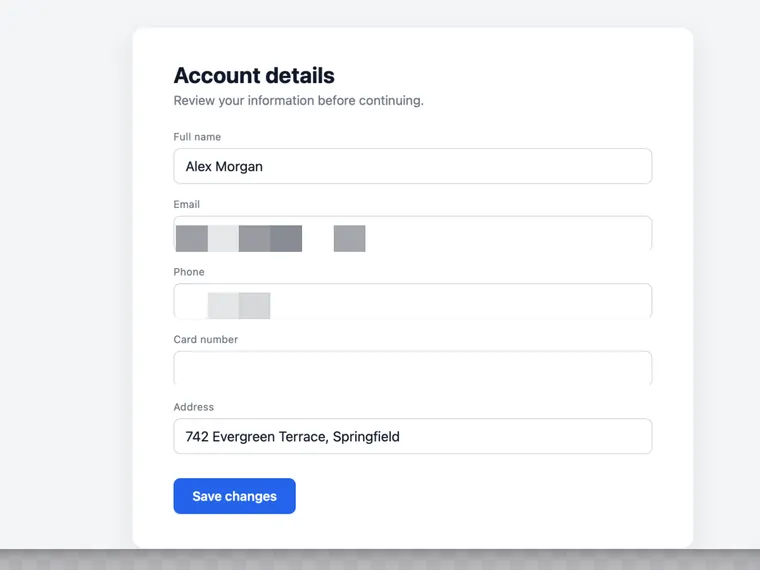
A form in Webstarted Screen Capture with the email and the phone number blurred before sharing
Blur or pixelate what's private before it leaves your screen.
The Webstarted Screen Capture ruler measuring a button at 397 px wide and a badge at 267 by 267 px
The ruler measures distances and boxes, in px or pt.
Read & describe · 100% local

Ask your screenshot what it says.

Copy text from anywhere on screen: press ⌘⇧8Ctrl+Shift+8, pick the area, and it's on your clipboard, without even opening the app. Reading text uses the OCR built into your system (Apple Vision on macOS, Windows OCR), so it's instant and there's nothing to install.

Want more than the text? If you run Ollama, the app lists your models, flags the ones that can see, and describes any capture with a prompt you can edit.

  • Copy text with ⌘⇧8, also from the menu bar iconCtrl+Shift+8, also from the tray icon
  • Native OCR, offline and instant
  • Optional AI description with your local Ollama models
  • Nothing leaves your machine
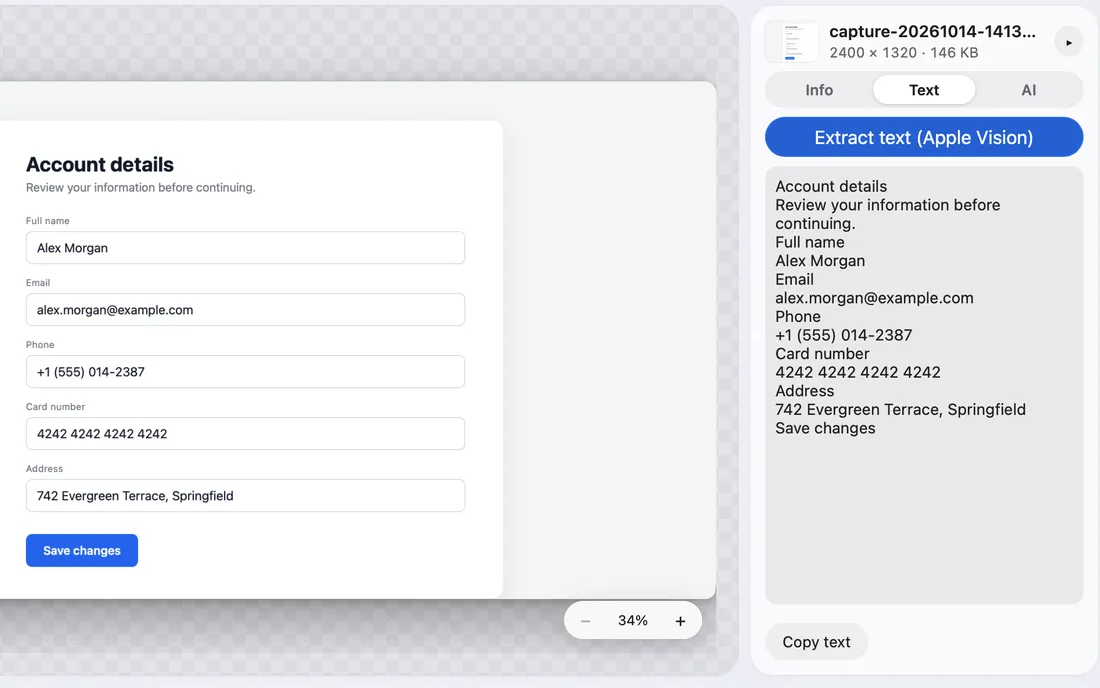
The Text tab in Webstarted Screen Capture, showing every line of a captured form read by Apple Vision, ready to copy
The Text tab in Webstarted Screen Capture on Windows, with the text of a captured page read by Windows OCR, ready to copy
Canvas & PDF

Several captures, one image or one PDF.

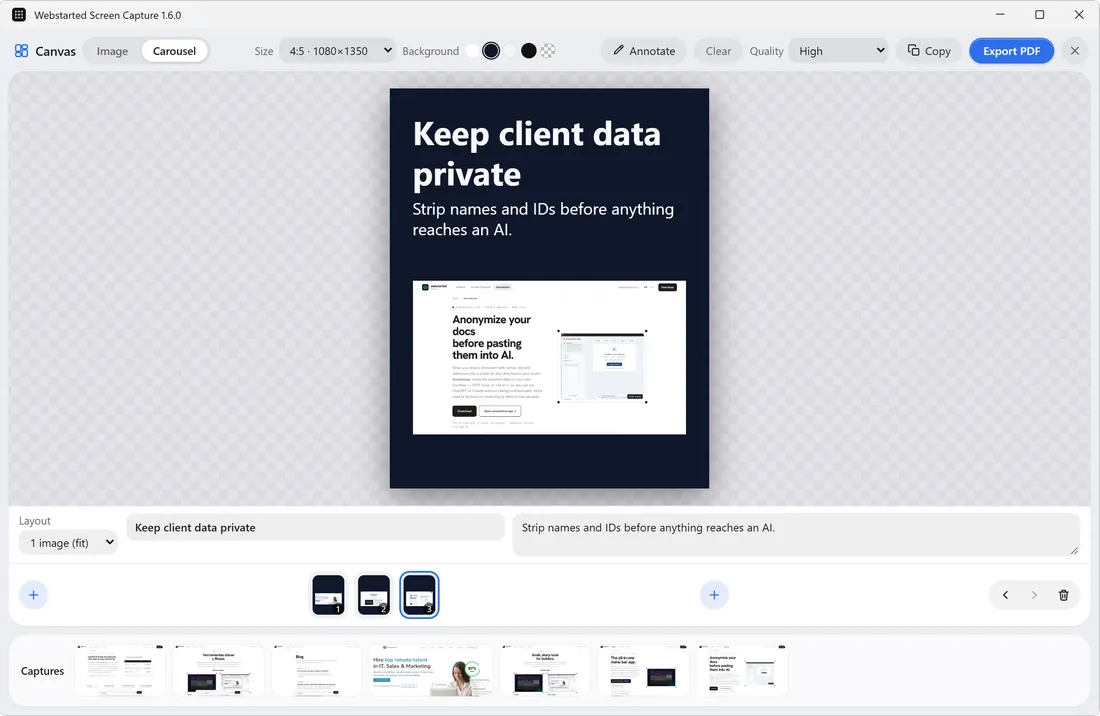
Canvas has two modes. Image lays several captures out as a single collage, at an automatic or a fixed size. Carousel turns them into pages and exports a PDF, made for LinkedIn carousels. Every page is annotated with the same editor.

  • Collage of several captures, auto or fixed size
  • Carousel pages with a title and a subtitle, exported to PDF
  • Annotate each page with the full editor
Canvas in Carousel mode in Webstarted Screen Capture: three 4:5 pages with a title and a subtitle on a navy background, next to the Export PDF button
History · Pro

Find that screenshot from last month.

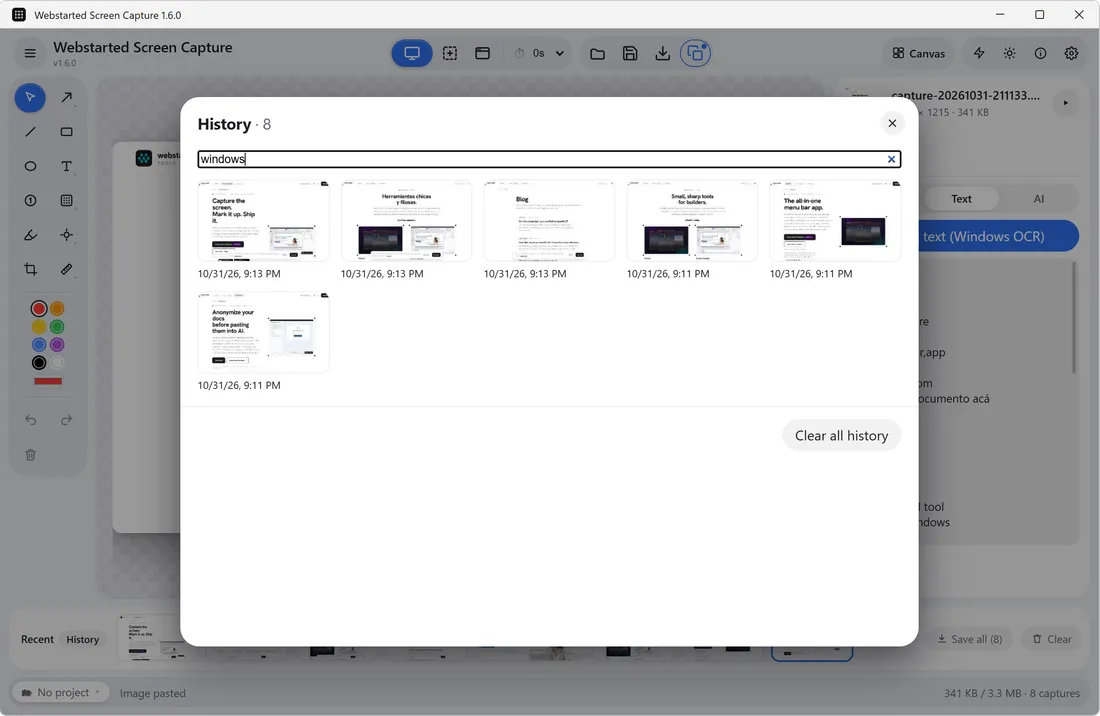
With Pro, every capture that goes through the filmstrip is archived on disk with its thumbnail. Open History and search by the text in the image, the AI description, the app it came from or the file name, with or without accents and capitals. Reopen it or delete it from there.

  • Every capture kept on disk, not just the last ten
  • Search by the text inside the image (OCR)
  • Or by source app, AI description and file name
The History grid in Webstarted Screen Capture with a search for windows, showing 6 of 8 captures
Themes

Light, dark, or whatever your system says.

Native on macOS and Windows: the menus, the title bar and the tray follow along. Switch with the ☀ button in the toolbar or in Preferences.

Webstarted Screen Capture on macOS in the light theme
Webstarted Screen Capture on macOS in the dark theme
Webstarted Screen Capture on Windows 11 in the light theme
Webstarted Screen Capture on Windows 11 in the dark theme
Output & flow

Everything else, handled.

⌖

Timed capture

A floating countdown window gives you a beat to set up the shot before it fires.

⧉

Clipboard-first

Copy to clipboard on demand, or auto-copy on every capture. Or drag the thumbnail straight into Slack, an email or a folder.

⤓

Save & autosave

Save, or save-as anywhere. Optional autosave to a folder — defaults to your Pictures.

▦

Recent filmstrip

Your last ten captures stay one click away in a built-in strip. With Pro, the whole history, searchable.

▣

Projects

Group related captures into a project — keep a bug report, a client review or a session's screenshots together.

✎

Names that mean something

Files come out as onboarding-003-google-chrome.png: project, order and source app. Rename from the status bar, or press ⌘⇧S to save and name.

⛨

Nothing gets lost

Unsaved captures survive a crash, a forced quit or an update. They're back the next time you open the app.

↻

Updates itself

New versions install in the background, never over mobile data or a hotspot. With unsaved captures, it offers to save them first. You can turn it off.

Automate it

Let the capture take the next step.

Flows, a command line and a local MCP server for AI agents. Everything runs on your machine and stays off until you turn it on.

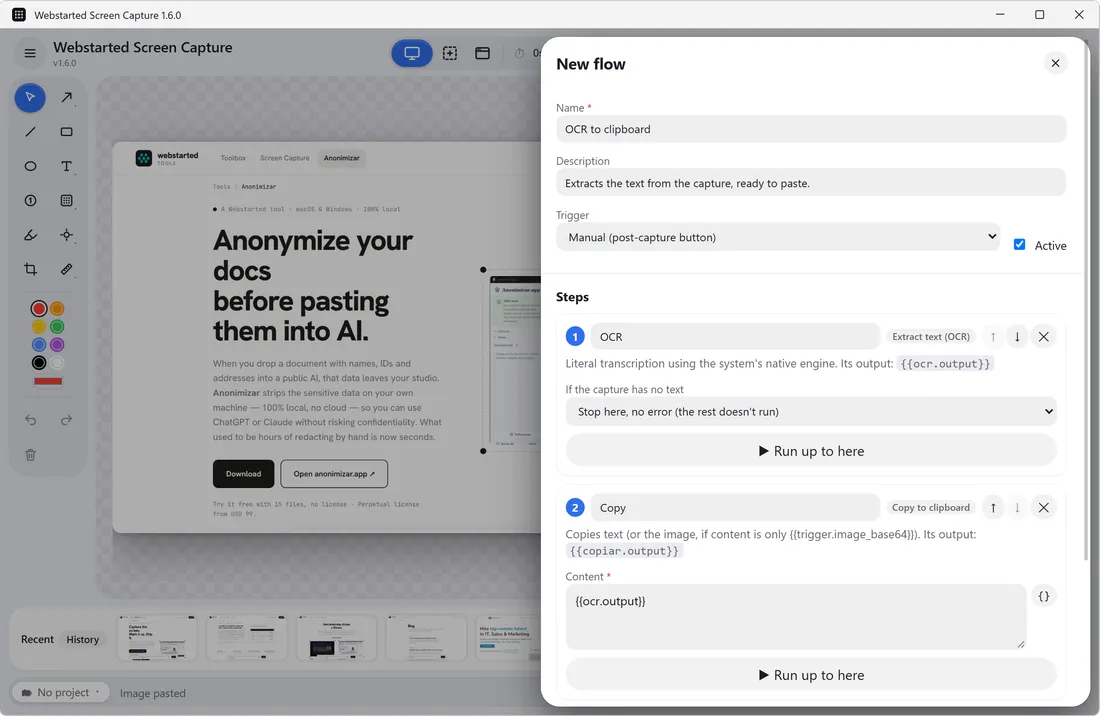
The flow editor in Webstarted Screen Capture with the OCR to clipboard recipe: a trigger, numbered steps and Run up to here

Flows Pro

A capture sets off a chain: read the text, describe it with local AI, copy, save, append to a file, open a URL or send it to a webhook (JSON, or multipart with the image and auth headers). Run it from the Flows bar or on every capture, with one switch to pause them all.

  • Ready-made recipes: OCR to clipboard or to a .txt, describe and copy, capture to a webhook or a Google Doc, a capture log in Markdown
  • Visual editor, no code, with variables like {{trigger.timestamp}}
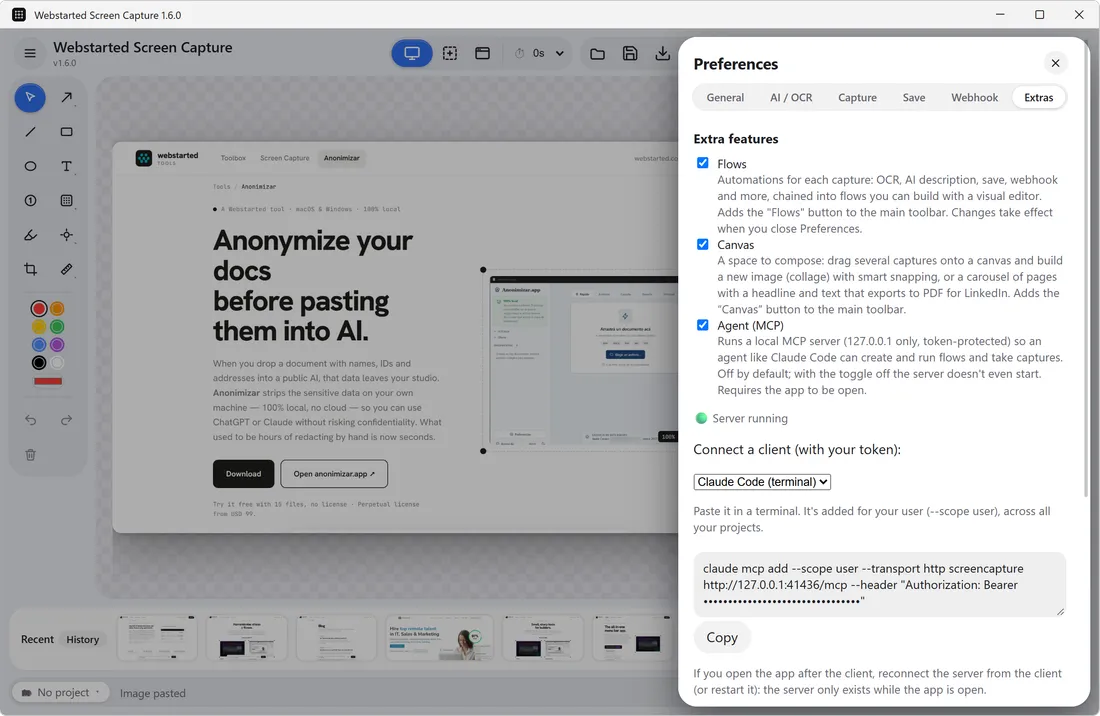
Preferences, Extras tab in Webstarted Screen Capture: Flows, Canvas and the Agent (MCP) server running, with the claude mcp add command ready to copy

MCP server for AI agents Pro

Let your AI agent take the screenshot. Claude, Cursor or VS Code can capture, read the text, build a flow or lay out a PDF, all on your machine.

  • Local only (127.0.0.1) with a token, off by default
  • Setup ready to copy for Claude Code, Claude Desktop, Cursor and VS Code

What the agent can do, how to connect it and how it stays local

$ capture --ocr
$ capture --out shot.png

Command line

Text or a PNG to stdout or to a file, without opening the window. Plug it into macOS Shortcuts or Power Automate on Windows. Commands and recipes.

Flows and the MCP server come with the direct download and the Microsoft Store edition, not with the Mac App Store one.

Screen Capture Pro

More room for the work you capture.

The app is free to use. Pro unlocks the parts built for heavier workflows, in the direct download (DMG, winget) and the Microsoft Store edition.

  • Searchable history: every capture you take, kept on disk and searchable by the text in it, the app it came from or its file name
  • Canvas with PDF export: lay several captures out and export them as one PDF
  • Flows and webhook: chain capture, OCR, save and a webhook into one action
  • Local AI descriptions: describe any capture with your own Ollama models
  • MCP server: let Claude, Cursor or VS Code capture, read the text and build flows for you
US$9.99

One-time purchase. No expiry, no limit on computers.

Buy Pro

Charged by Webstarted through Stripe. One-time purchase, no account.

Your license arrives by email as a .wsclic file. Open the Pro sheet in the app and install it from there.

Using the Mac App Store edition? Pro is bought inside the app, through the App Store, and doesn't go through this page.

Already bought it? We'll resend your license

Enter the email you used at checkout.

Global shortcuts

Hands stay on the keyboard.

⌘⇧2
CtrlShift2
Full screenCapture the primary display
⌘⇧7
CtrlShift7
RegionStart a selection anywhere
⌘⇧8
CtrlShift8
Copy textPick an area, get its text on the clipboard

Works system-wide, even when the app is in the background. Ctrl replaces ⌘ on Windows. On a Mac, ⌘ takes the place of Ctrl.

Native & tidy

Built for the desktop it runs on.

It lives in the menu bar on macOS and in the tray on Windows: closing the window doesn't quit it. On a Mac the Dock icon shows up only while there's a window (or always, or never). The app speaks English and Spanish, and the notes of each update arrive in your language.

macOS: guided permissionScreen Recording status, access and a clean restart
Windows: signed installerPublished by Webstarted, also on the Microsoft Store and winget
Light, dark or the system'sMenus, title bar and tray follow along
FAQ

Questions, answered.

I turned on Screen Recording but the app still says it doesn't have permission

It almost always happens after switching editions: having the direct download (DMG) and then installing the Mac App Store version, or the other way around. They are the same app but signed differently, and macOS keeps a separate permission for each one, so the switch you turned on may belong to the other. To fix it: 1) Quit the app completely (menu bar icon → Quit; closing the window is not enough). 2) Open System Settings → Privacy & Security → Screen Recording (Screen & System Audio Recording on recent macOS), select Webstarted Screen Capture and remove it with the − button. If it shows up more than once, remove them all. 3) Open the app, grant the permission when it asks and use the restart button in the notice. If you prefer Terminal, step 2 is the same as running tccutil reset ScreenCapture com.webstarted.screencapture. If the app shows a blank icon or a name ending in .app in that list, it is cosmetic and does not affect the permission. Still stuck? Write to apps-support@webstarted.com.

Can I recover my screenshots after quitting the app?

Yes. Unsaved screenshots and their annotations are kept on disk while you work and come back the next time you open the app, even if it crashed or was closed by an update. Saved ones can be reopened from Saved last time with Reopen all. You can turn recovery off in Preferences → Save. In the Mac App Store edition this arrives with version 1.4.

How do I stop the app from opening when I start my computer?

Open Preferences → General and turn off Launch at startup. In the Mac App Store edition this option starts turned off.

Does removing a screenshot from Saved last time delete the file?

No. The × button and Remove from the list only take the thumbnail off the list. The saved file stays on your computer.

Can I annotate an image I already have?

Yes. Choose Open image, drag an image into the window or paste one from the clipboard. Then annotate and crop it like any screenshot.

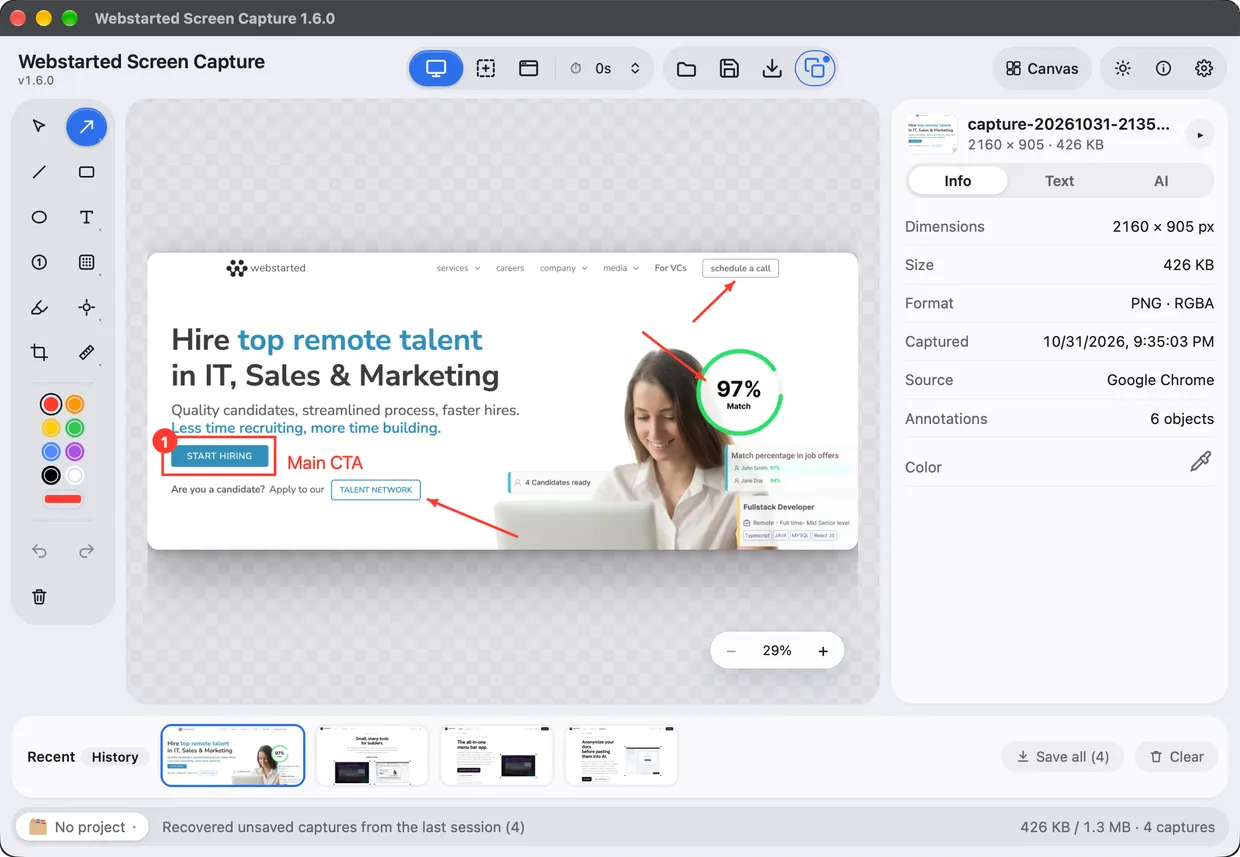
Webstarted Screen Capture editing a captured screenshot
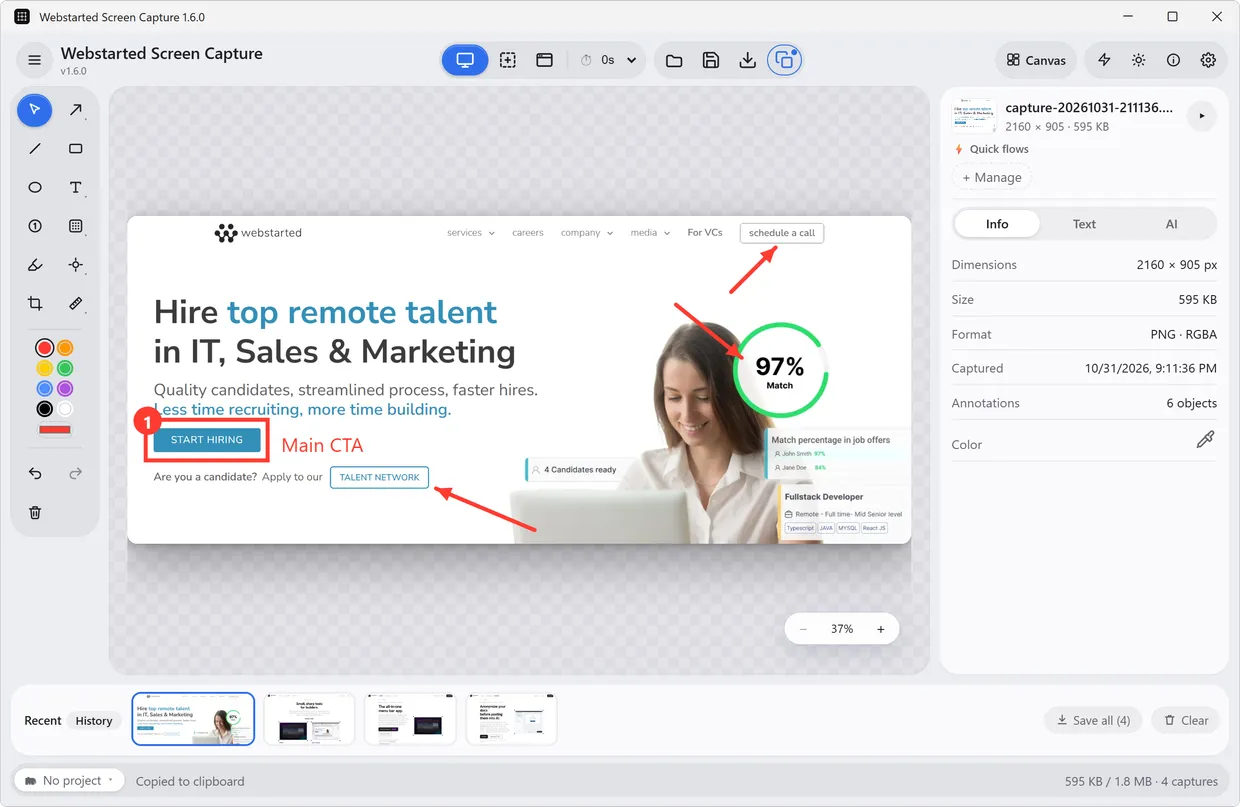
Webstarted Screen Capture editing a captured screenshot on Windows

Get Webstarted Screen Capture

Free to use. macOS 12+ (Apple Silicon) and Windows 10+.

Also on Download on the Mac App Store Get it from Microsoft

The Mac App Store edition leaves out Canvas & PDF, Ollama AI, flows, webhooks, local network sharing and the MCP server. The direct download has all of it and updates itself.

macOS (Apple Silicon) · Windows (x64) · No account required