
How to keep your computer awake while you are away: locked, screen off, still working
Leave a download, a render or an AI agent like Claude Code running: keep a Mac or Windows PC awake with the screen off and the session locked.
A big download, a render, a backup, a remote session, or an AI agent like Claude Code or Codex working through a long task: some jobs need the computer running after you leave the desk. What you want then is three things at once: the machine awake, the screen off, and the session locked so nobody walks up to your desktop. Mac and Windows can do it with what they already include; this guide shows how, and where it breaks.
Locked is not asleep, and a dark screen is not asleep either. With the session locked and the display off, everything keeps running. Only sleep stops the machine: downloads, processes, agents and remote connections are cut.
Summary
| Stay awake | Screen off | Lock | |
|---|---|---|---|
| Mac | caffeinate -i, or a setting while plugged in | pmset displaysleepnow | Control-Command-Q |
| Windows 11 | Sleep set to Never, or PowerToys Awake | Short screen timeout | Windows key + L |
| Keep Awake (ours) | One click, timed or while a process runs | After 5 to 30 idle minutes, or now | Optional, right before the screens go off |
Shortcuts to lock your Mac or PC
Locking is the part that protects your desktop, and it is one shortcut on each system:
- Mac: Control-Command-Q. On a keyboard with Touch ID, pressing the Touch ID button also locks, and so does Apple menu > Lock Screen. Every way, including automatic lock: how to lock your Mac screen.
- Windows: Windows logo key + L, or Ctrl+Alt+Delete and then Lock. Every way, including Dynamic lock: how to lock your Windows PC.
Neither shortcut keeps the machine awake: a locked computer still sleeps on its normal schedule. That is what the rest of this guide fixes.
On a Mac
1. Keep it awake, ideally only while the job runs
macOS includes the caffeinate command. The flag that matters here is
-i: it prevents idle sleep and still lets the display turn off. The neat part is that
you can tie it to the job itself, so the Mac goes back to normal the moment the job ends:
caffeinate -i ./long-job.sh
For something that is already running, pass its process ID with -w and caffeinate
lets go when that process exits:
caffeinate -i -w 4821
That is also the cleanest way to keep a Mac awake while an AI coding agent works: start it as
caffeinate -i claude and the Mac stays awake exactly as long as Claude Code does.
Every flag is in our caffeinate guide.
Plugged in and without Terminal, System Settings has the same idea as a switch: on a desktop Mac, Energy > “Prevent automatic sleeping when the display is off”; on a MacBook, Battery > Options > the same option for the power adapter. Remember to turn it back off. Step by step, with where each switch lives: how to stop a Mac from sleeping.
2. Lock it and turn the screen off
Control-Command-Q locks the Mac at once. To turn the display off right away, run
pmset displaysleepnow (no administrator password needed). If your Mac asks for the
password immediately after the display turns off (System Settings > Lock Screen), the
display going dark also locks it.
The one limit no command changes: closing the lid puts a MacBook to sleep, unless it is plugged in with an external display (closed-lid mode). If the job must survive a closed lid on battery, leave the lid open or use an app built for that, like the ones in our Amphetamine alternatives comparison.
On Windows 11
With system settings
Every option, including powercfg, is in
how to stop Windows from going to sleep. The
short version: in Settings > System > Power & battery > Screen, sleep, & hibernate
timeouts, set “Make my device sleep after” to Never while the job runs and “Turn my
screen off after” to something short. Then lock with Windows key + L. It works, but the
settings stay changed until you remember to change them back.
With PowerToys Awake
Microsoft’s free PowerToys include Awake, which keeps the PC awake without touching your power plan. According to Microsoft’s documentation, when you lock the computer Awake stops keeping the display on, so Windows turns it off on its normal schedule, while the keep-awake mode itself stays active and the PC keeps working. Coming from Awake to a Mac? Each mode has an equivalent: PowerToys Awake for Mac.
What these tools do not do
- They do not move your mouse. Keeping the system awake is not the same as looking active: chat apps can still show you as away. That is what a mouse jiggler does, and it is a different tool.
- They do not beat a closed lid on battery (see above), and they do not keep the machine running if it loses power.
Need the screen on instead?
Sometimes the job is the opposite: a dashboard, a remote viewer or a recipe that must stay
visible. Then you want the display to stay on, which is a different timer from sleep. On
a Mac it is System Settings > Lock Screen (or caffeinate -d for a
while); on Windows 11, “Turn my screen off after” in the power settings. Step by step:
how to keep your screen on.
The one-click way: Keep Awake
Disclosure: this one is ours. Keep Awake is built into Webstarted Toolbox, a free menu bar app for macOS 12 and later and Windows 10 and later, and it does the three steps from one panel. Step by step:
-
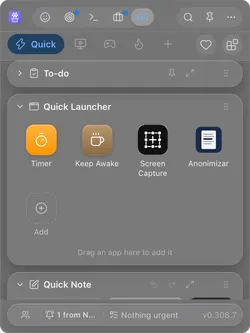
Open Toolbox from the menu bar on a Mac (the system tray on Windows) and click Keep Awake, the coffee cup in the Quick Launcher.
-
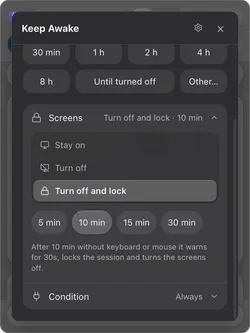
In Screens, pick Turn off and lock and how many idle minutes: 5, 10, 15 or 30. After that long without keyboard or mouse it warns for 30 seconds, locks the session and turns the screens off. Touching anything during the warning cancels it.
-
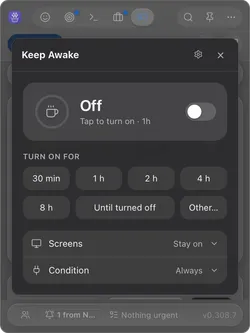
Choose how long: 30 min to 8 h, Until turned off, or Other… to type your own length (90, 1h30) or a clock time (until 18:30). Tapping a length turns Keep Awake on right away.
-
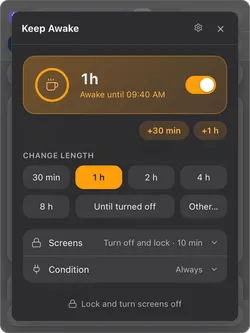
Leaving right now? Once it is on with Turn off and lock, the button at the bottom reads Lock and turn screens off: one click locks the session and darkens the displays, and the computer keeps working.
-
Under Condition there are two optional limits. Only when plugged in pauses it on battery and resumes when you plug in. While a process runs takes a process name (for example
claude) and keeps the computer awake only while that process is running.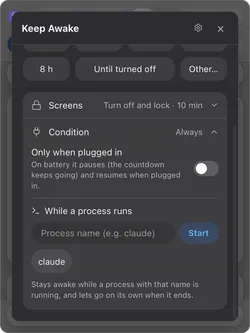
Also in the same panel:
- Screens has two more modes: Turn off darkens the screens after the idle minutes without locking (locking is then up to your system), and Stay on keeps them lit.
- Behind the gear: “Turn it back on if Toolbox restarts” and “Turn it on when Toolbox opens on this computer”, for a machine that should always be ready to work while you are away.
- Claude can drive it. With the MCP server built into Toolbox turned on, an agent can turn Keep Awake on, off, or check it, so it stays awake during a long task and sleeps again after.
Under the hood it uses what the system already has: caffeinate and
pmset displaysleepnow on the Mac, the Windows power API on the PC. When time is up,
or you quit Toolbox, everything goes back to your normal settings. Like the built-in tools, it
does not keep a MacBook awake with the lid closed on battery, and it does not move your mouse.
Only need the dark screen, without locking? That case has its own guide: turn off the screen without sleep.
Sources
- Mac keyboard shortcuts (Apple Support).
- Set sleep and wake settings for your Mac (Apple Support).
- caffeinate and pmset man pages (SS64).
- How to adjust power and sleep settings in Windows (Microsoft Support).
- PowerToys Awake (Microsoft Learn).
