
How to keep your Windows PC from going to sleep: settings, powercfg and apps
Stop a Windows 11 or 10 PC or laptop from sleeping: the sleep setting, powercfg for plugged in only, PowerToys Awake, and keeping it awake for one job only.
To stop a Windows 11 PC from going to sleep, set “Make my device sleep after” to Never, in Settings > System > Power & battery. That is the permanent way. If you only need the PC awake for one download, one render or one night, there are better options that put everything back on their own: PowerToys Awake, or an app tied to the job.
Screen off is not sleep. Windows has two timers: one turns the display off, the other puts the PC to sleep. With the display off, programs keep running. With the PC asleep, downloads, renders, backups and remote sessions stop.
With Windows 11 settings
- Open Start > Settings > System > Power & battery.
- Expand Screen, sleep, & hibernate timeouts.
- Set “Make my device sleep after” to Never. A laptop shows two values, plugged in and on battery: change only the plugged-in one if you do not want to drain the battery.
- Leave “Turn my screen off after” as it is, or short: the display can go dark while the PC keeps working.
The catch is that it stays that way until you remember to change it back, and a desktop that never sleeps uses power all night for nothing.
From a terminal: powercfg
The same timers can be changed from PowerShell or Command Prompt with powercfg.
Values are in minutes, and 0 means never. -ac is plugged in,
-dc is on battery:
powercfg /change standby-timeout-ac 0
powercfg /change standby-timeout-dc 0
Like the setting, these commands change your power plan until you change it back: nothing restores itself. Before running them, write down your current “Make my device sleep after” values, plugged in and on battery. To put them back, set the same minutes again for both, for example:
powercfg /change standby-timeout-ac 30
powercfg /change standby-timeout-dc 15
And if the PC refuses to sleep when you want it to, powercfg /requests lists the
programs and drivers that are holding it awake.
Without touching your settings: PowerToys Awake
Microsoft’s free PowerToys include Awake, which keeps the PC awake without changing your
power plan: indefinitely, for a time interval, or until a date and time, from the system tray.
Its Keep screen on switch also holds the display, and from the command line
--pid ties it to a process, so it lets go when that program exits. When you lock
the PC, Awake keeps it awake but lets Windows turn the display off. Coming from a Mac too? Every
Awake mode has an equivalent there:
PowerToys Awake for Mac. The popular
Caffeine app takes a different route (it fakes a keypress):
Caffeine for Windows and its alternatives.
Do it with Keep Awake
Disclosure: this one is ours. Keep Awake comes free inside Webstarted Toolbox, in the system tray, and keeps the PC awake for a set time, until you turn it off, or only while a program runs. It uses the Windows power API, so your sleep settings stay as they are and everything goes back to normal when it ends or when you quit Toolbox.
-
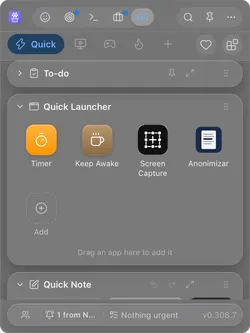
Open Toolbox from the menu bar on a Mac (the system tray on Windows) and click Keep Awake, the coffee cup in the Quick Launcher.
-
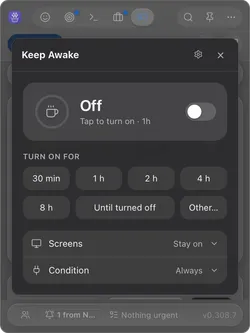
Choose how long: 30 min to 8 h, Until turned off, or Other… to type your own length (90, 1h30) or a clock time (until 18:30). Tapping a length turns Keep Awake on right away.
-
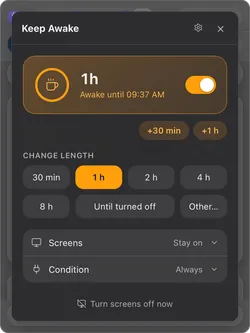
It is on: the card turns amber and shows until when it stays awake. +30 min and +1 h add time, tapping another length replaces the current one, and the switch turns it off. Next time, the switch alone turns it back on with the last length.
-
Under Condition there are two optional limits. Only when plugged in pauses it on battery and resumes when you plug in. While a process runs takes a process name (for example
claude) and keeps the computer awake only while that process is running.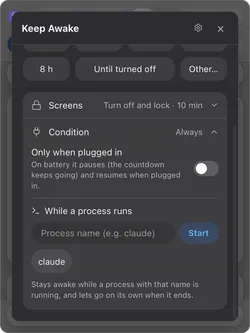
-
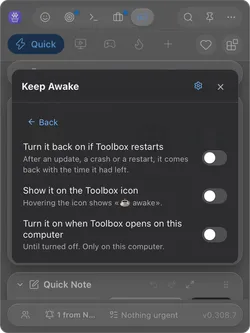
The gear opens three options: Turn it back on if Toolbox restarts, Show it on the Toolbox icon and Turn it on when Toolbox opens on this computer, for a machine that should always be ready.
Leaving it working while you are out, locked and with the screens off? That has its own guide: how to keep your computer awake while you are away. On a Mac: how to stop a Mac from sleeping.
Questions people ask
How do I stop my Windows PC from going to sleep?
On Windows 11, open Settings > System > Power & battery > Screen, sleep, & hibernate timeouts and set “Make my device sleep after” to Never, for plugged in and, if you want, on battery. Set it back when you no longer need it.
Will the screen still turn off if the PC does not sleep?
Yes, if you want it to. The screen timeout (“Turn my screen off after”) and the sleep timeout are separate, so the PC can keep working with the display dark. Only sleep stops downloads and programs.
How do I keep a laptop awake only while it is plugged in?
Change only the plugged-in timeout: in Settings, the “Plugged in” column of “Make my device sleep after”, or from a terminal powercfg /change standby-timeout-ac 0. On battery the laptop keeps its normal sleep timer. Keep Awake has the same idea as a switch: “Only when plugged in”.
Sources
- How to adjust power and sleep settings in Windows (Microsoft Support).
- Powercfg command-line options (Microsoft Learn).
- Sleep idle timeout (Microsoft Learn).
- PowerToys Awake (Microsoft Learn).
