
How to lock your Mac screen: the shortcut, the menu and automatic lock
Lock a MacBook or any Mac with Control-Command-Q, the Apple menu, Touch ID or a hot corner, make it lock on its own, and lock it while a job keeps running.
The fastest way to lock a Mac is Control-Command-Q. The screen locks at once and asks for your password or Touch ID to come back, while every app keeps running. There are four more ways, one of them automatic, and one catch worth knowing: locked is not the same as asleep.
Every way to lock your Mac
| How | What to do | Good for |
|---|---|---|
| Shortcut | Control-Command-Q | Any Mac, any keyboard |
| Touch ID | Press the Touch ID button | MacBooks and Magic Keyboards with Touch ID |
| Apple menu | Apple menu > Lock Screen | When you do not remember the shortcut |
| Hot corner | Move the pointer to a corner you set up | Locking with the mouse alone |
| Automatic | Lock Screen settings (below) | When you forget to lock |
The lock screen shortcut: Control-Command-Q
Press Control, Command and Q together. It works on a MacBook keyboard and on any external keyboard, including Windows keyboards, where Command is the Windows key. Do not confuse it with Shift-Command-Q, which logs you out and quits your apps instead of locking.
Touch ID and the Lock Screen key
On a MacBook or Magic Keyboard with Touch ID, a short press of the Touch ID button locks the screen. Some Magic Keyboards have a dedicated Lock Screen key that does the same.
From the Apple menu
Click the Apple menu in the top-left corner and choose Lock Screen. It is the slow way, but it shows you the shortcut right next to it.
With a hot corner
Open System Settings > Desktop & Dock, click Hot Corners, and pick Lock Screen for one corner. From then on, flicking the pointer into that corner locks the Mac. Pick a corner you will not hit by accident.
Make your Mac lock automatically
The lock you forget is the one that matters. macOS can lock on its own after a few idle minutes, in two settings of System Settings > Lock Screen:
- “Turn display off on battery when inactive” and “Turn display off on power adapter when inactive”: how many idle minutes before the display goes dark.
- “Require password after screen saver begins or display is turned off”: set it to Immediately, so the dark display also means a locked Mac. With a delay, the Mac stays unlocked for that long after the display goes dark.
The display turning off is not sleep: apps keep running. But the Mac also has a sleep timer, and a locked Mac that falls asleep stops working. That is the catch in the next section.
Lock it and keep it working
Locking is enough to stop someone from using your Mac. It is not enough to finish a long
download, a render or an AI agent like Claude Code: if the Mac goes to sleep behind the lock
screen, all of that pauses. To leave it locked and awake, add something that holds
sleep off. In Terminal, caffeinate -i keeps the Mac awake until you press
Control-C, while still letting the display turn off (every flag is in our
caffeinate guide). Then lock it with
Control-Command-Q. For a setting instead of a command, see
how to stop a Mac from sleeping.
One limit nothing changes: closing the lid puts a MacBook to sleep on battery. Leave the lid open, or plug it in with an external display.
Do it with Keep Awake
Disclosure: this one is ours. Keep Awake comes free inside Webstarted Toolbox and does the lock and the staying awake from one panel: it keeps the Mac awake, and after a few idle minutes it locks the session and turns the screens off by itself.
-
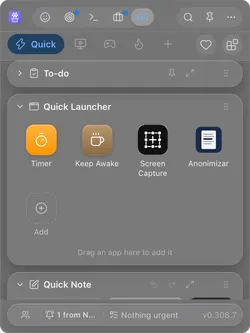
Open Toolbox from the menu bar on a Mac (the system tray on Windows) and click Keep Awake, the coffee cup in the Quick Launcher.
-
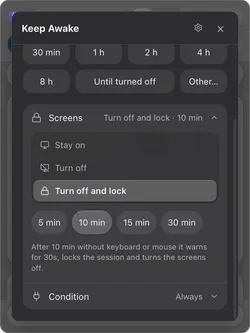
In Screens, pick Turn off and lock and how many idle minutes: 5, 10, 15 or 30. After that long without keyboard or mouse it warns for 30 seconds, locks the session and turns the screens off. Touching anything during the warning cancels it.
-
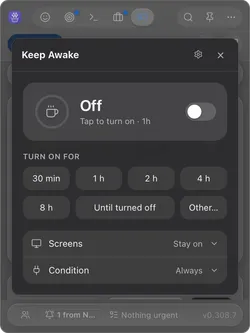
Choose how long: 30 min to 8 h, Until turned off, or Other… to type your own length (90, 1h30) or a clock time (until 18:30). Tapping a length turns Keep Awake on right away.
-
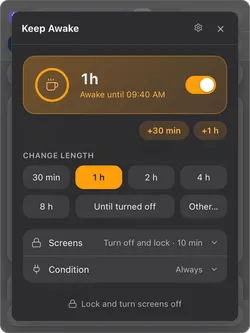
Leaving right now? Once it is on with Turn off and lock, the button at the bottom reads Lock and turn screens off: one click locks the session and darkens the displays, and the computer keeps working.
The whole setup, for leaving a machine working while you are out: how to keep your computer awake while you are away. On a PC instead? The same, for Windows: how to lock your Windows PC.
Questions people ask
What is the keyboard shortcut to lock a Mac?
Control-Command-Q locks the screen right away. On a Mac or Magic Keyboard with Touch ID you can also just press the Touch ID button. Shift-Command-Q is a different shortcut: it logs you out and closes your apps.
Does locking a Mac stop downloads and running apps?
No. A locked Mac keeps everything running: downloads, renders, backups and AI agents carry on behind the lock screen. What stops them is sleep. If the Mac sleeps on its own schedule while locked, the work pauses too, so keep it awake if the job has to finish.
How do I make my Mac lock automatically?
In System Settings > Lock Screen, choose when the display turns off when inactive, and set “Require password after screen saver begins or display is turned off” to Immediately. From then on, when the display goes dark, the Mac locks.
Sources
- Mac keyboard shortcuts (Apple Support).
- Lock the screen of your Mac (Apple Support).
- Use hot corners on Mac (Apple Support).
- Change Lock Screen settings on Mac (Apple Support).
