
How to keep your screen from turning off on a Mac or a Windows PC
Stop the display from turning off on a Mac or a Windows PC: the settings that decide when it goes dark, the screen saver, caffeinate -d, and a one-click switch.
Your screen turns off because of one timer, and you can make it longer or switch it off. On a Mac it lives in System Settings > Lock Screen; on Windows 11, in Settings > System > Power & battery. Below is where each switch is, how to keep the screen on just for a while (a presentation, a recipe, a dashboard), and how to undo it.
On a Mac
The setting: Lock Screen
- Open System Settings > Lock Screen.
- Set “Turn display off on power adapter when inactive” to a longer time, or Never. On a MacBook, do the same with “Turn display off on battery when inactive” if you also need it on battery.
On a MacBook on battery, a display that never turns off drains the battery faster. Change only the power adapter one if you can.
Just for a while: caffeinate -d
macOS includes the caffeinate command. In Terminal, caffeinate -d
keeps the display on until you press Control-C, without touching your settings, and
caffeinate -d -t 3600 does it for one hour (the time is in seconds). Every flag:
the caffeinate command on Mac.
On Windows 11
The setting: Screen timeout
- Open Start > Settings > System > Power & battery.
- Expand Screen, sleep, & hibernate timeouts.
- Set “Turn my screen off after” to a longer time or Never. A laptop has two values, plugged in and on battery.
The screen saver
If a screen saver kicks in before the screen turns off, the display still looks “gone”. Open Settings > Personalization > Lock screen and select Screen saver under related settings. Choose (None), or set a longer Wait.
Just for a while: PowerToys Awake
Microsoft’s free PowerToys include Awake, with a Keep screen on switch that holds the display while Awake is running, without touching your power plan. Microsoft notes one limit: it only applies while the PC is unlocked. Once you lock, Windows can turn the display off again.
Screen on and computer awake are different things. The screen timer and the sleep timer are separate settings: a computer can stay awake with the screen off, and a longer screen timer alone does not stop it from sleeping. If what you need is the job to keep running, not the screen, see how to turn off the screen without sleep.
Do it with Keep Awake
Disclosure: this one is ours. Keep Awake comes free inside Webstarted Toolbox, for Mac and Windows. In its Stay on mode the screens stay lit for as long as it is on, for a set time or until you turn it off, and your settings stay untouched.
-
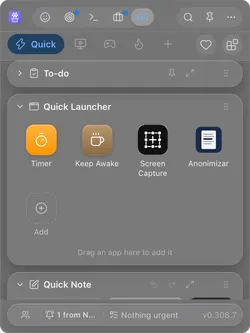
Open Toolbox from the menu bar on a Mac (the system tray on Windows) and click Keep Awake, the coffee cup in the Quick Launcher.
-
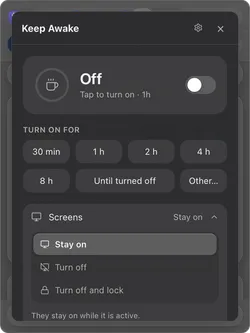
Open Screens and leave it on Stay on: the displays stay lit for as long as Keep Awake is on. Turn off and Turn off and lock are the other two modes.
-
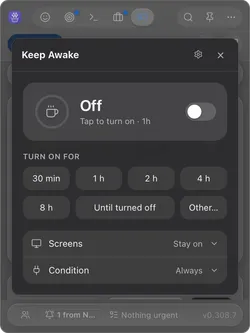
Choose how long: 30 min to 8 h, Until turned off, or Other… to type your own length (90, 1h30) or a clock time (until 18:30). Tapping a length turns Keep Awake on right away.
-
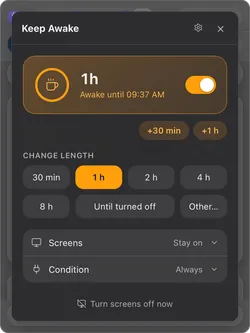
It is on: the card turns amber and shows until when it stays awake. +30 min and +1 h add time, tapping another length replaces the current one, and the switch turns it off. Next time, the switch alone turns it back on with the last length.
The same panel has the opposite too: Turn off darkens the screens after a few idle minutes while the computer keeps working. More on that in how to keep your computer awake while you are away.
Questions people ask
How do I keep my screen from turning off on Windows?
On Windows 11, open Settings > System > Power & battery > Screen, sleep, & hibernate timeouts and set “Turn my screen off after” to a longer time or Never. If a screen saver comes on first, set it to (None) in the Screen saver settings.
How do I keep my Mac screen on?
In System Settings > Lock Screen, set “Turn display off on power adapter when inactive” (and the battery one, on a MacBook) to a longer time or Never. For a one-off, run caffeinate -d in Terminal and the display stays on until you press Control-C.
Does keeping the screen on stop my computer from locking?
Not necessarily. The display timer and the lock are separate settings: a Mac locks when you ask for the password after the display turns off, and Windows can lock from the screen saver or Dynamic lock. Check those too if the screen has to stay on and unlocked.
Sources
- Change Lock Screen settings on Mac (Apple Support).
- caffeinate man page (SS64).
- How to adjust power and sleep settings in Windows (Microsoft Support).
- Configure a screen saver in Windows (Microsoft Support).
- PowerToys Awake (Microsoft Learn).
