
How to lock your Windows PC: the shortcut, the lock screen and automatic lock
Windows key + L locks your PC instantly. Also Ctrl+Alt+Delete, Dynamic lock and the screen saver, and how to lock it with the screens off and keep it working.
The shortcut to lock a Windows computer is Windows logo key + L. The PC locks at once, and every program keeps running behind the lock screen. Below are the other ways, how to make Windows lock by itself when you walk away, and what to do when the job has to keep going after you lock.
Every way to lock a Windows PC
| How | What to do | Good for |
|---|---|---|
| Shortcut | Windows logo key + L | The fastest, on any keyboard |
| Security screen | Ctrl+Alt+Delete, then Lock | Keyboards without a Windows key |
| Dynamic lock | Walk away with your paired phone | Locking without thinking about it |
| Screen saver | Lock after a few idle minutes | When you forget to lock |
The lock computer shortcut: Windows + L
Press the Windows logo key and L together. Microsoft lists it as “Lock the computer” on Windows 11 (and “Lock your PC or switch accounts” on Windows 10). Your apps, windows and downloads stay exactly where they were; you come back with your PIN, password or Windows Hello.
Ctrl+Alt+Delete
Ctrl+Alt+Delete opens the security screen, and Lock is one of its options. It is slower than Windows + L, but it is the one to remember on a keyboard without a Windows key. In a Remote Desktop session, Ctrl+Alt+Delete goes to your own computer: to reach the security screen of the remote PC, press Ctrl+Alt+End.
Make Windows lock automatically
Dynamic lock: lock when your phone leaves
Pair your phone with the PC over Bluetooth, then open Settings > Accounts > Sign-in options, expand Dynamic lock and turn on “Allow Windows to lock your device automatically when you’re away”. According to Microsoft, Windows locks within a minute after your phone is out of Bluetooth range. It depends on the Bluetooth link, so treat it as a safety net, not as your only lock.
Lock after a few idle minutes
Windows can also lock when nobody touches it, through the screen saver. Open Settings > Personalization > Lock screen and, under related settings, select Screen saver. Pick any screen saver, set Wait to the number of idle minutes, and check “On resume, display logon screen”. From then on, after that long without input, the PC locks.
Lock it and keep it working
Two things Windows + L does not do. It does not turn the monitors off right away: Windows turns them off later, following your power settings. And it does not stop the PC from sleeping: if “Make my device sleep after” (in Settings > System > Power & battery > Screen, sleep, & hibernate timeouts) runs out while you are away, the PC sleeps behind the lock screen and a download or a render stops with it. Every way to hold sleep off, settings included: how to stop Windows from going to sleep.
Do it with Keep Awake
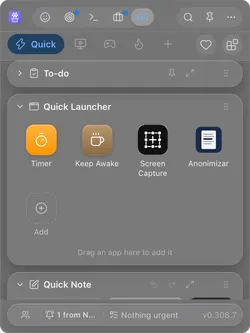
Disclosure: this one is ours. Keep Awake comes free inside Webstarted Toolbox, which runs in the system tray on Windows, and does the three things at once: it keeps the PC awake, locks the session and turns the screens off, either after a few idle minutes or with one click when you leave. The panel is the same on Windows and on the Mac.
-
Open Toolbox from the menu bar on a Mac (the system tray on Windows) and click Keep Awake, the coffee cup in the Quick Launcher.
-
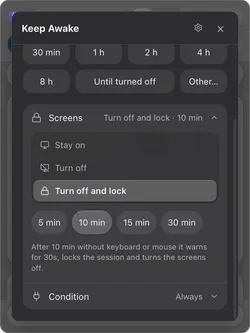
In Screens, pick Turn off and lock and how many idle minutes: 5, 10, 15 or 30. After that long without keyboard or mouse it warns for 30 seconds, locks the session and turns the screens off. Touching anything during the warning cancels it.
-
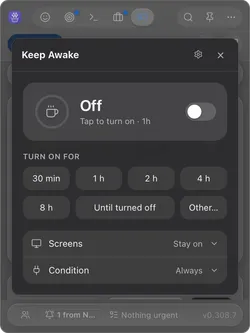
Choose how long: 30 min to 8 h, Until turned off, or Other… to type your own length (90, 1h30) or a clock time (until 18:30). Tapping a length turns Keep Awake on right away.
-
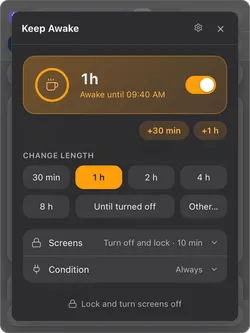
Leaving right now? Once it is on with Turn off and lock, the button at the bottom reads Lock and turn screens off: one click locks the session and darkens the displays, and the computer keeps working.
For the whole “leave it working while I am out” setup: how to keep your computer awake while you are away. Also on a Mac? How to lock your Mac screen.
Questions people ask
What is the shortcut to lock a Windows computer?
Windows logo key + L. It locks the PC at once on Windows 11 and Windows 10. Ctrl+Alt+Delete also works: it opens the security screen, where Lock is the first option.
Does locking Windows stop downloads and running programs?
No. A locked PC keeps everything running behind the lock screen: downloads, renders, backups, remote sessions. What stops them is sleep, which Windows can still enter on its own schedule while locked.
How do I make Windows lock automatically when I walk away?
Two built-in ways. Dynamic lock, in Settings > Accounts > Sign-in options, locks the PC within about a minute after a paired phone leaves Bluetooth range. Or set a screen saver with “On resume, display logon screen”, which locks after the idle minutes you choose.
Sources
- Keyboard shortcuts in Windows (Microsoft Support).
- Sign-in options in Windows (Microsoft Support).
- Configure a screen saver in Windows (Microsoft Support).
- How to adjust power and sleep settings in Windows (Microsoft Support).
- Remote Desktop Services shortcut keys (Microsoft Learn).
